Clear Cache Google Play Store

Welcome to the magical world of cache-cleaning, where your Google Play Store gets a fresh start and your downloads fly like they’re on rocket fuel! If your apps are taking for...
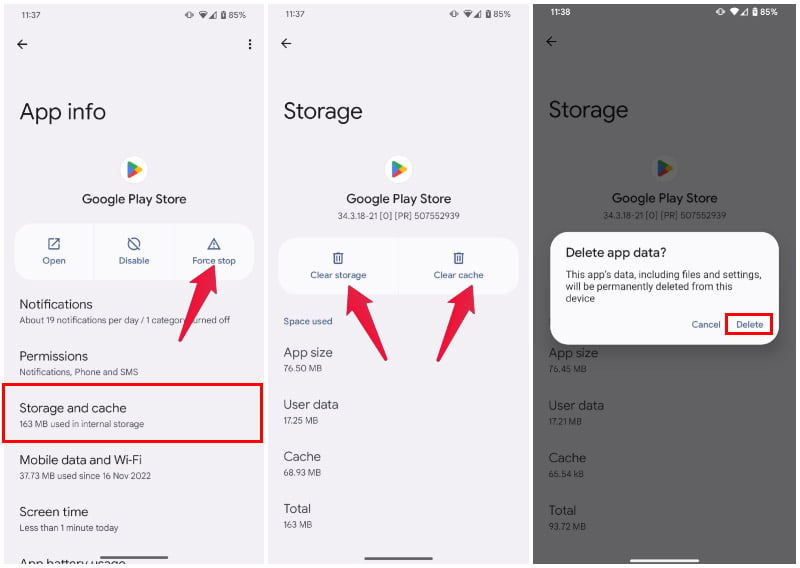
Welcome to the magical world of cache-cleaning, where your Google Play Store gets a fresh start and your downloads fly like they’re on rocket fuel! If your apps are taking forever to update, or the store feels sluggish, it’s not your phone’s fault—it’s just digital clutter. Clearing the cache is like giving your Play Store a quick spa day: it removes temporary junk, fixes glitches, and boosts performance. The best part? It takes less than a minute and solves so many annoying problems.
The purpose of clearing the cache is simple: it wipes out old, unnecessary data that apps store to load faster, but that can cause conflicts over time. Think of it as a tiny digital spring clean. The advantage? You’ll see faster downloads, fewer error messages, and a store that actually refreshes properly. You might even free up a bit of storage! No more staring at a spinning wheel while an update refuses to start—it’s a quick win for your phone’s health.
Here’s a creative idea: imagine your Play Store cache is like a cluttered closet filled with old receipts and broken hangers. Every time you try to download a new game, the closet jams. Clearing the cache is like dumping all that junk, folding the space neatly, and letting your apps breathe. Another fun trick: if you ever see a “Download pending” message that won’t go away, just clear the cache, and poof—the magic happens. It’s your secret weapon against digital tantrums.
Must Read
Practical advice? It’s super easy. On Android, go to Settings > Apps > Google Play Store > Storage, then tap “Clear Cache.” Don’t worry—this won’t delete your account or app purchases. It only removes temporary files. For an extra boost, try “Clear Data” (which resets the store’s settings), but don’t panic—you’ll just need to sign in again. Do this once a month to keep the Play Store zippy and error-free.
Still having issues? If clearing cache doesn’t fix a stubborn error, try force stopping the Play Store app first. Go to the same menu, tap “Force Stop,” then clear the cache. It’s like a double espresso for your device. You can also restart your phone afterward—this ensures the new, clean cache is loaded fresh. Pro tip: if you’re a power user, clear the cache of Google Play Services too (in the same settings menu) for an even smoother experience.
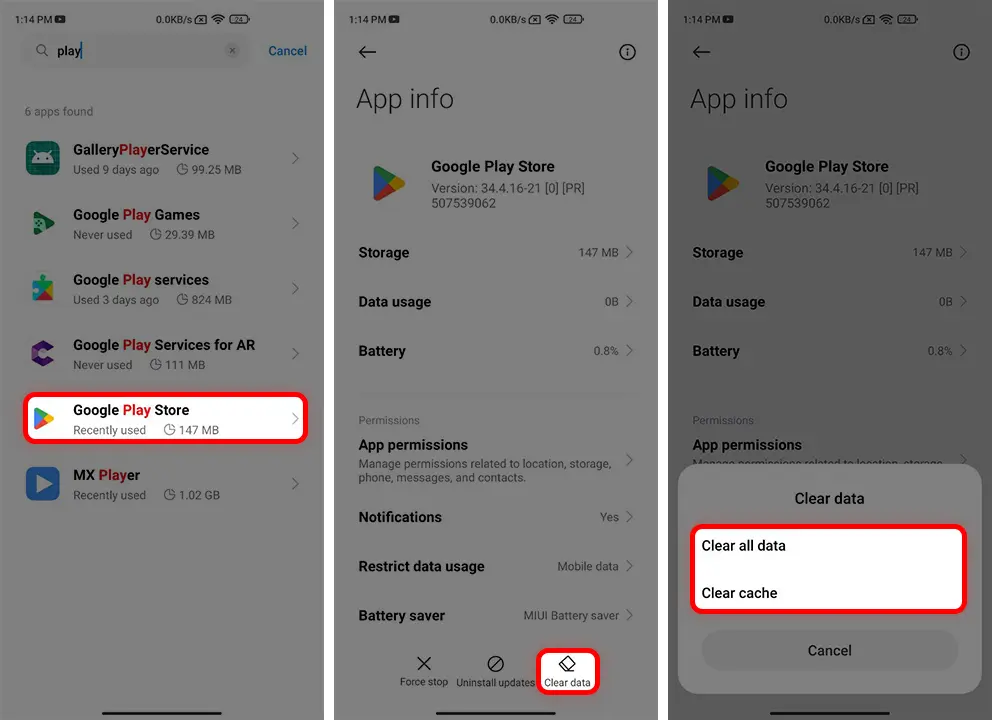 Solution for Google Play System Update Not Showing | TechRushi
The best part? This trick works for any app that’s acting up—not just the Play Store. Use it for YouTube, Chrome, or your favorite game. It’s a universal fix that takes zero tech skills. Next time your phone feels slow, remember: clearing cache is your first, happiest solution. It’s free, fast, and way more satisfying than yelling at your screen.
So go ahead—clear that cache and reclaim your speed. Your Play Store will thank you with lightning-fast updates and no more “Check your connection” nonsense. It’s a tiny habit that makes a huge difference, and you’ll wonder why you didn’t try it sooner. Happy downloading!
:max_bytes(150000):strip_icc()/C4-UpdateGooglePlayStore-annotated-a512f71ff34b48b59d2fe0ed628101e8.jpg)

