Clear Cache In Play Store

There’s something almost satisfying about a quick tech fix that solves a vague, nagging problem, and clearing the cache in the Google Play Store is exactly that. This little m...
There’s something almost satisfying about a quick tech fix that solves a vague, nagging problem, and clearing the cache in the Google Play Store is exactly that. This little maintenance task is widely appreciated because it’s simple, free, and instantly effective. Whether you’re trying to download a new app that’s stuck at “Pending” or you’re just tired of a sluggish interface, a clean cache often feels like giving your phone a five-minute nap. It’s a practical trick that works for nearly everyone, from busy professionals to casual gamers.
The main purpose of clearing the Play Store cache is to remove temporary files that apps accumulate over time. These files are meant to speed things up, but they can become corrupted or bloated, causing downloads to fail, pages to freeze, or updates to stop mid-progress. By flushing this data, you’re essentially giving the Play Store a fresh start. The benefit? Smoother performance, fewer error messages, and a faster path to your favorite apps.
Different people find their own reasons to love this trick. For a smartphone beginner, it’s a lifesaver when a game stops downloading right before a weekend trip. For a power user, it’s a quick fix when the Play Store refuses to show new releases. Even developers appreciate it when testing beta versions. Common variations include clearing the cache for related services like Google Play Services or the Download Manager, which helps if your phone struggles with multiple app updates at once. Think of it as a universal reset button for your app store.
Must Read
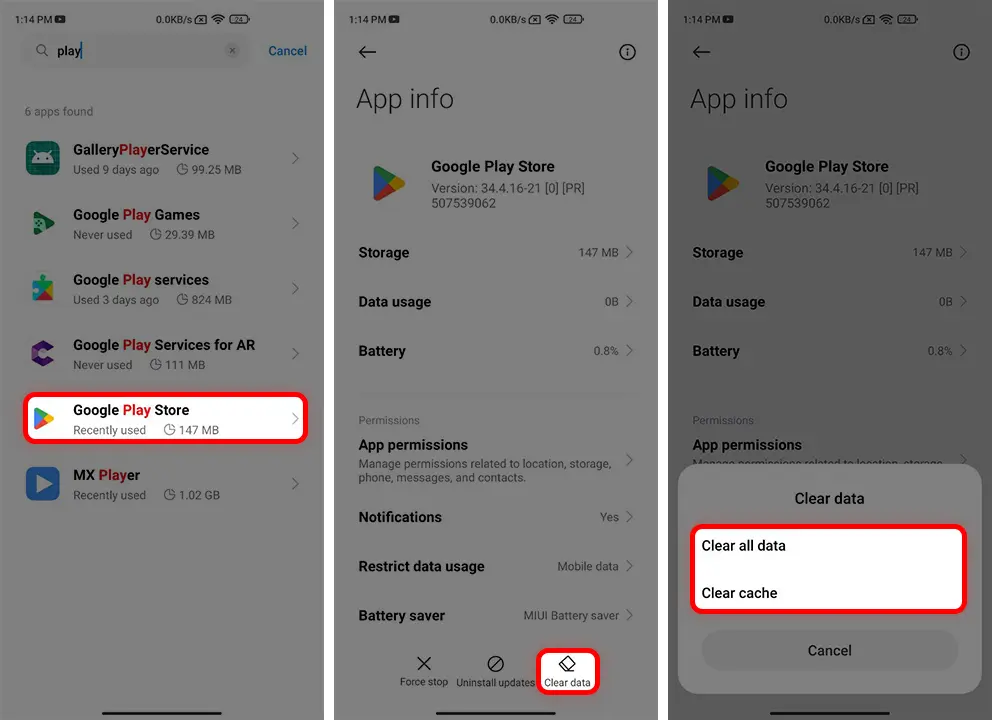
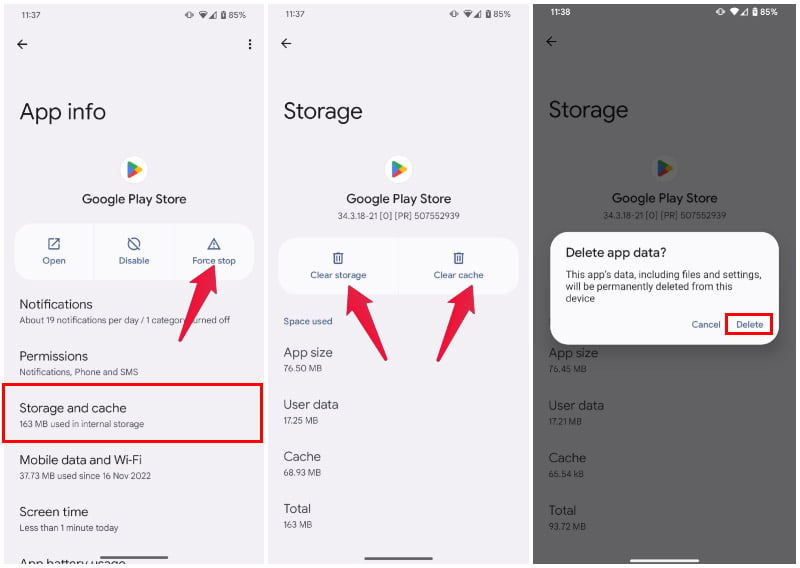
Getting started is incredibly easy. On Android, open Settings, then tap Apps (or “Application Manager”). Scroll to find “Google Play Store,” tap it, and select Storage & cache. Finally, hit Clear cache. That’s it—no need to touch “Clear data” unless you want to reset your account preferences completely. Avoid pressing that button unless you’re ready to re-sign in, as it wipes more than just temporary files. A simple cache clear is the safe, sweet spot.
To make the most of this habit, try doing it once every few weeks or whenever you notice the Play Store feeling laggy or unresponsive. If a download gets stuck, clear the cache before restarting your phone—often, it’s all you need. For bonus points, clear the cache of Google Play Services at the same time (same steps, different app). This duo fixes most minor glitches. Just remember: cache clearing is harmless. It doesn’t delete your apps, accounts, or personal data.
 Google Play Authentication Required: 8 Ways to Fix This Issue
One common mistake is assuming you need to clear data instead. Don’t panic if an error pops up suggesting that; stick with cache only unless you’ve tried everything else. Another tip: after clearing the cache, reopen the Play Store immediately to let it rebuild a fresh, faster set of files. You’ll notice the store loads a bit slower the first time, then zips along. It’s a brief moment of patience for long-term speed.
In the end, clearing the Play Store cache is a tiny ritual that offers big relief—like dusting off a shelf or rebooting a router. It’s practical, non-intrusive, and surprisingly reliable. Next time your app download refuses to budge or the store feels sluggish, remember this easy fix. A few taps can save you from frustration, and that’s something to appreciate in our busy digital lives. So go ahead, give your Play Store a clean slate—your phone will thank you.