How To Cast Mac To Roku

There’s something genuinely satisfying about taking a show, a photo slideshow, or even a work presentation from your Mac and sending it straight to your big-screen Roku TV. It...
There’s something genuinely satisfying about taking a show, a photo slideshow, or even a work presentation from your Mac and sending it straight to your big-screen Roku TV. It’s one of those modern conveniences that feels almost magical, yet it’s surprisingly easy to set up. Whether you’re hosting a cozy movie night with friends, sharing vacation photos with family, or just want to watch YouTube from the comfort of your couch instead of hunching over a laptop, this simple trick changes how you enjoy your content. The best part? You don’t need a degree in tech to pull it off.
The core idea here is screen mirroring, and Roku makes it wonderfully straightforward. Your Mac’s display becomes the source, and your Roku-connected TV becomes the destination. This isn’t just for watching Netflix—though it works great for that. You can use it to show off a recipe while cooking, display a spreadsheet during a casual meeting, or even play a mobile-style game on a larger canvas. Think of it as turning your TV into a giant, wireless second monitor that works without messy cables.
Before you start, a quick reality check: not all Macs and Rokus are created equal. Your Mac needs to be from 2012 or later, and it must be running macOS Mojave (10.14) or newer. Your Roku, meanwhile, should be a model that supports screen mirroring—most Roku devices from 2014 onward do, but it’s worth checking in your Roku’s Settings under “System.” Also, both devices must be on the same Wi-Fi network. This is the number-one hiccup people hit, so double-check your connection before diving in.
Must Read
Ready to get started? Here’s the simple, actionable routine. On your Roku remote, go to Settings > System > Screen Mirroring and set it to “Prompt” or “Always Allow.” This tells your Roku to look for your Mac. Then, on your Mac, click the AirPlay icon in the menu bar near the clock. If you don’t see the icon, go to System Settings (or System Preferences) and enable AirPlay Receiver in the “Sharing” panel. From the AirPlay menu, select your Roku’s name. Your TV will show a code—type that code into your Mac, and bam, your screen appears on the big screen.
Once you’re connected, you have control. Use the AirPlay menu to adjust the display. You can choose to mirror your entire Mac screen, which is perfect for a presentation, or you can “Use As Separate Display,” which treats your TV like an extended desktop. This second option is fantastic for multitasking: you can have a video playing full-screen on the TV while you browse the web or answer emails on your Mac. To disconnect, simply click the AirPlay icon again and select “Turn Off AirPlay.”
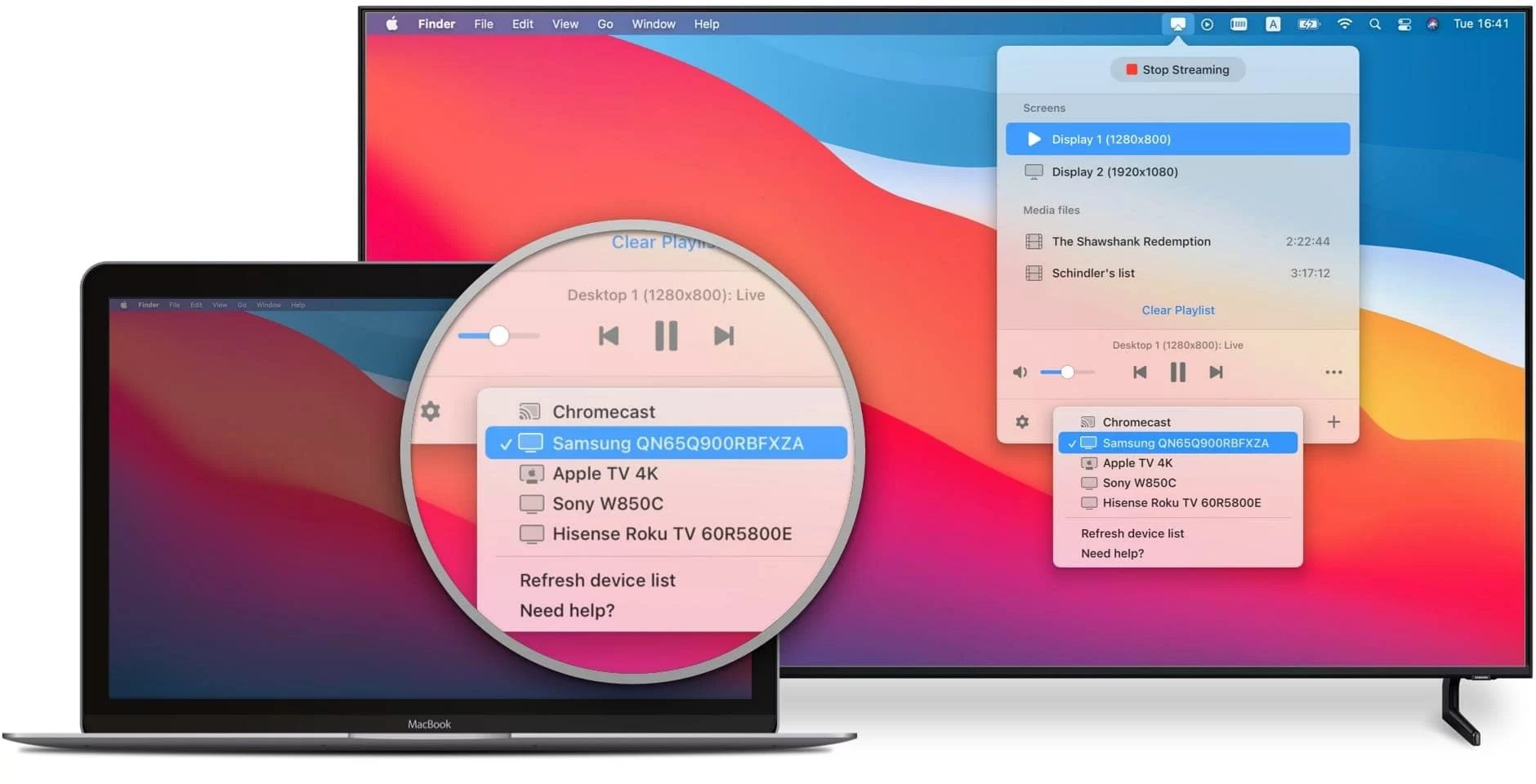 How To Screen Mirror Macbook To Roku | Robots.net
If your Mac doesn’t show the AirPlay icon, don’t panic. A common workaround is to use a streaming app like Plex or VLC. These apps often have a “Cast” button inside them. Open the app, start your content, click the cast icon, and select your Roku. This method works even with older Macs or if AirPlay is acting finicky. Another tip: if you get choppy video, try moving your Wi-Fi router closer or reducing the distance between your Mac and the TV. Wireless interference is often the quiet culprit.
Ultimately, casting your Mac to Roku is about frictionless convenience. It turns a solo laptop experience into a shared, living-room event. Whether you’re streaming a documentary, presenting a slide deck, or just checking your email on a bigger screen, the process is quick and forgiving. So next time you want to share something from your Mac, don’t crowd around the small screen—just cast it. Your TV is waiting, and the setup takes less time than making popcorn.