How To Pause Avast

In the quiet hum of a smoothly running computer, few things are more satisfying than uninterrupted focus. Whether you are immersed in a high-stakes game, installing a large so...
In the quiet hum of a smoothly running computer, few things are more satisfying than uninterrupted focus. Whether you are immersed in a high-stakes game, installing a large software suite, or debugging a complex piece of code, the last thing you want is an antivirus alert popping up at the worst possible moment. This is where the ability to pause your Avast antivirus becomes an invaluable skill. It offers a temporary peace, letting you take control of your digital environment without completely disabling your security.
The key purpose of pausing Avast is to grant you a brief window of autonomy. Unlike a permanent disable, which leaves your system vulnerable, a pause is a temporary, reversible action. For example, when you need to install a legitimate, signed application that Avast mistakenly flags as a false positive, pausing it for ten minutes allows the installation to complete smoothly. Similarly, if you are running a benchmark test or a high-end game that is being slowed down by real-time scanning, a short pause ensures optimal performance without sacrificing long-term protection.
The benefits for everyday life are clear: no more sudden interruptions. Imagine you are in the middle of a live stream or an important video call, and Avast decides to run a background scan. By pausing the shield, you reclaim your machine’s resources, ensuring your audio and video remain crisp. This small act of control transforms your computer from a reactive tool into a cooperative partner, letting you work, play, and create without friction.
Must Read
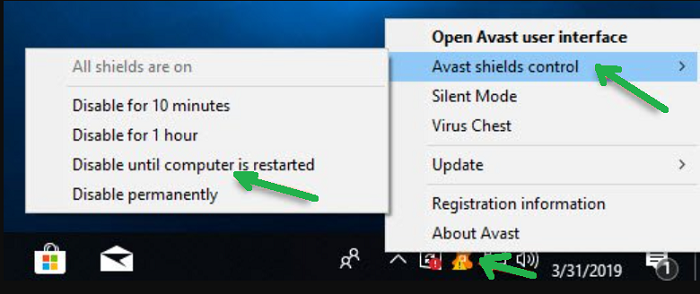
To pause Avast, the process is straightforward. First, right-click the Avast icon in your system tray (the area near the clock). A context menu will appear. Hover your cursor over “Avast Shields Control,” and you will see several options: “Disable for 10 minutes,” “Disable for 1 hour,” “Disable until computer is restarted,” and “Disable permanently.” Choose the duration that matches your task. For most scenarios, selecting 10 minutes is the safest and most responsible choice, as it minimizes your exposure window.
A simple tip for exploring this feature on your own is to test it with a non-critical task first. For instance, open a large PDF or run a system utility you trust. Right-click and pause Avast for ten minutes, then perform the task. Observe the speed difference. This hands-on experiment builds confidence in using the pause function when it truly matters. Additionally, remember that Avast will automatically resume protection once the timer ends, so you don’t have to remember to turn it back on.
 What Is Avast Silent Mode at Pearline Beard blog
Another valuable practice is to pair pausing with manual updates. Before pausing for a major installation, run a quick virus definition update. This ensures that Avast has the latest threat intelligence before you temporarily disable its shields. You can update by right-clicking the Avast icon and selecting “Update” then “Engine and Virus Definitions.” This small step adds a layer of precaution, making your pause safer and more effective.
In summary, learning to pause Avast is about balancing security with convenience. It empowers you to be the master of your machine, deciding when to temporarily lower the drawbridge for a specific, trusted task. By using this feature wisely—choosing short, deliberate pauses—you enjoy a smoother experience without compromising your digital safety. The next time your computer’s rhythm is disrupted, remember that a simple right-click holds the key to serenity.