How To Temporarily Turn Off Avast

For many users, Avast antivirus provides a reassuring shield against intrusive malware, phishing scams, and suspicious downloads. It runs silently in the background, allowing...
For many users, Avast antivirus provides a reassuring shield against intrusive malware, phishing scams, and suspicious downloads. It runs silently in the background, allowing you to browse the web, open email attachments, and install software with a general sense of security. Whether you are a student downloading research files, a professional handling sensitive work documents, or a casual user streaming videos, Avast’s real-time protection is designed to keep your digital life safe without demanding constant attention.
The core purpose of Avast is to automatically monitor your system for threats, blocking dangerous activities before they can cause harm. This includes scanning websites as you visit them, checking every file you try to open, and even inspecting suspicious network traffic. However, there are specific moments when this vigilant protection can become an obstacle. For example, when installing a verified game or a trusted office application, Avast might mistakenly flag the installer as a threat, interrupting a smooth setup. Similarly, if you are a software developer, the antivirus might block your own compiled project, causing frustrating delays.
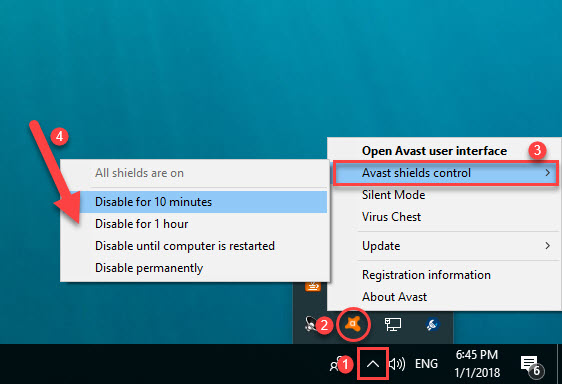
To address these situations, Avast offers a temporary disable function. This allows you to pause the shields for a short period—often 10 minutes, 1 hour, or until the next system restart. To do this, simply right-click the Avast icon in your system tray (usually near the clock in the bottom-right corner of your screen). From the menu, select Avast Shields Control, then choose how long you want the protection to be inactive. For instance, selecting “Disable for 10 minutes” gives you just enough time to install a problematic software or test a network setting without leaving your computer vulnerable indefinitely.
Must Read
A key benefit of this feature is that it does not permanently turn off Avast. The antivirus will automatically reactivate after the specified time, restoring full protection without any manual input. This is ideal for scenarios like troubleshooting a slow computer, where temporarily disabling real-time scanning can help you identify if Avast is the culprit. Similarly, if you need to run a legacy application that Avast incorrectly blocks, pausing the shields for an hour gives you a controlled window to complete your task.
 How To Turn Off Avast Antivirus 2020 Temporarily or Completely
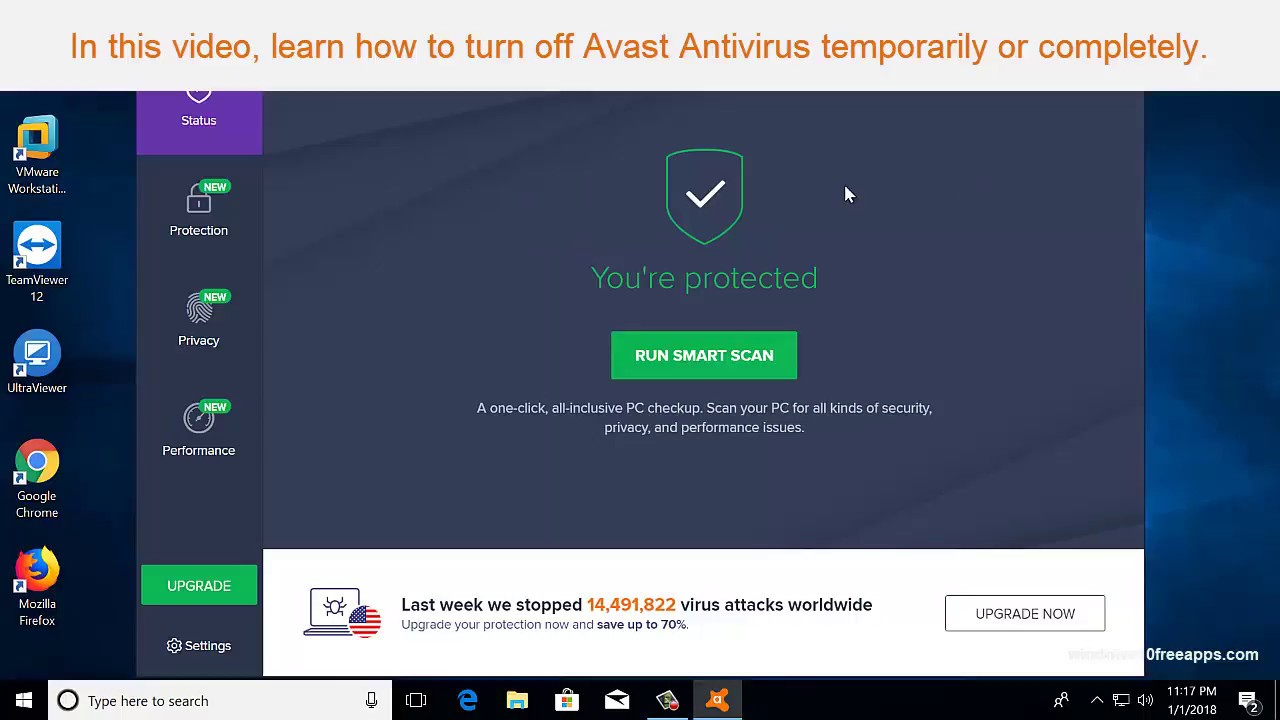
For those who prefer quicker access, you can also open the Avast main dashboard from the desktop icon. Once inside, go to Protection and then to Core Shields. Here, you can toggle the master switch to “Off,” and a pop-up will ask you to confirm the duration. Remember: never leave your antivirus disabled for extended periods without a specific reason. A simple tip is to always choose the shortest possible time—such as 10 minutes—and keep a browser window open with a known-safe download site to minimize risk.
By using this feature judiciously, you retain the control to perform necessary installations or troubleshooting without sacrificing long-term security. After the task is done, Avast’s shields automatically return, ensuring that your everyday browsing, streaming, and work remain protected against evolving threats. This balance between flexibility and safety is what makes antivirus tools like Avast valuable for both novice and experienced users.


